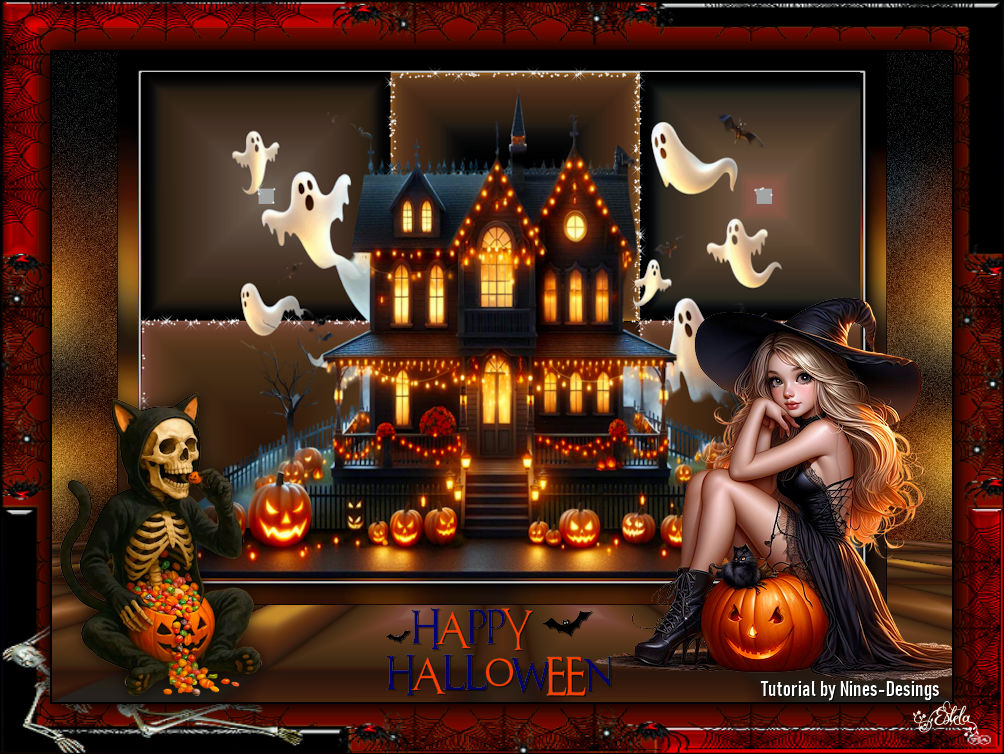
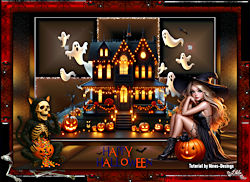
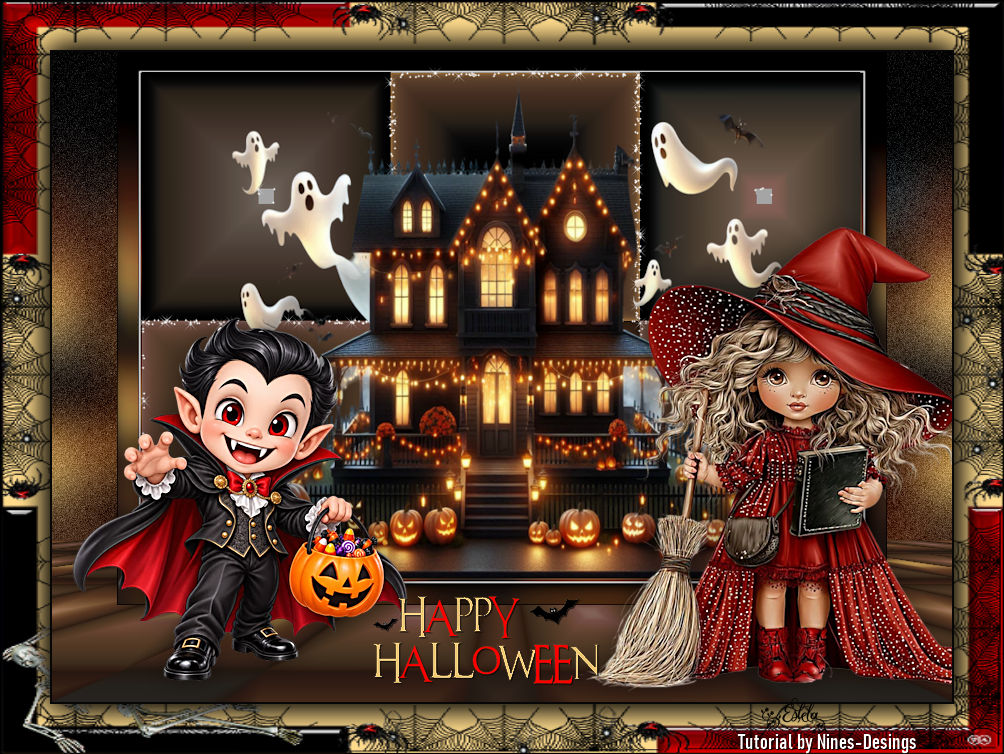
HALLOWEEN 2026
Tutorial de ©Nines-Designs (Angeles Cenarriaga) - Criado em 04/10 /2026.
Materiais Necessários:
Tube aigenbycaz38Tube Criss 6471
Halloween-Haus-06-02 by Gerda
hallow43-wodart-coly
Marco Halloween0004 by Lana
sel.22H.nines
Efeitos do Psp
Plugins:
AAA Frame/Foto FrameMedhi/Sorting Tiles
Alien Skin Xenofex2/Constellation
Mura's Meister/Perspective Tiling
Abra os tubes no PSP, duplique e feche os originais.
Trabalhe sempre com as cópias para preservar as imagens originais.
1- Abra uma nova imagem transparente de 900 x 650 pixels.2- Preencha com a cor #000000
3- Selections / Select All
4- Ative o arquivo «Halloween-Haus-06-02 by Gerda» Copie e cole na seleção.
Selections / Select None
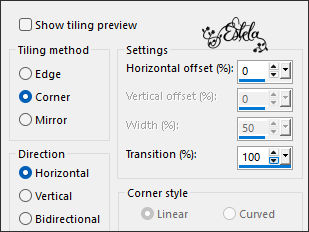
5- Effects / Image Effects / Seamless Tiling: Corner/Horizontal/0/100
6- Adjust / Blur/Gaussian Blur/Radius 25
7- Layers / Duplicate
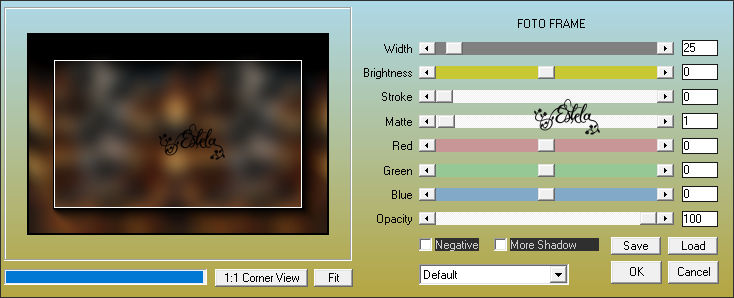
8- Effects / Plugins / AAA Frame/Foto Frame: 25/0/0/1/0/0/0 /100
9- Image / resize / 90% ...Resize All Layers ... Desmarcado
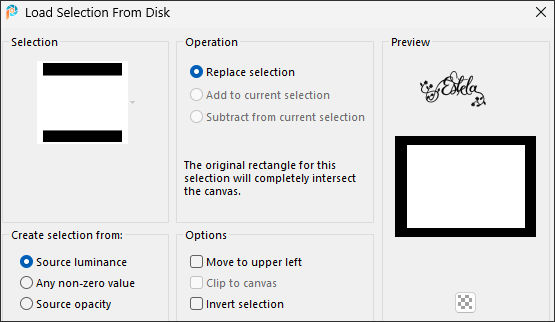
10- Selections / Load /Save selection / Load selection from disk: sel.22H.nines
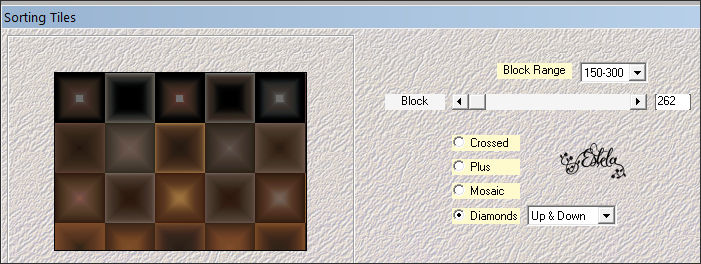
11- Effects / Plugins /Mehdi/Sorting Tiles: Diamonds/Up&Down/150-300/262
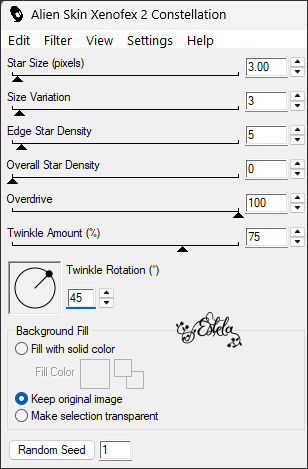
Mantenha a seleção!12- Effects / Plugins / Xenoflex2/Constellation: 3/3/5/0/100/75/ Keep original image
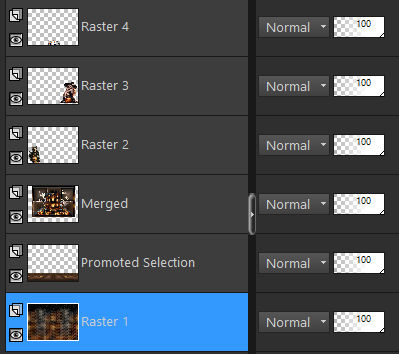
13- Layers / New Raster Layer
14- Ative o arquivo «Halloween-Haus-06-02 by Gerda»
Copie e cole na seleção
Selections / Selet None
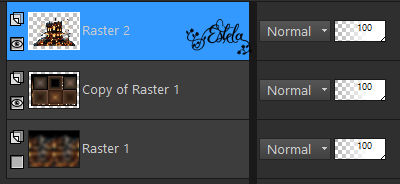
15- Feche a layer do Fundo ...
Layers / Merge / Merge Visible.
16- Imagen / Resize / 95% ...Resize All Layers ...Desmarcado
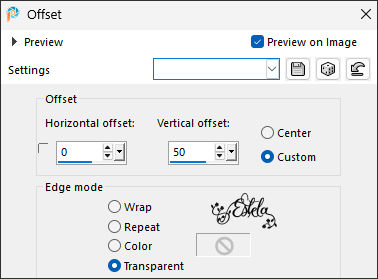
17- Effects / Image Effects / Offset: Horizontal 0/ Vertical 50/ Transparente e Custom... Marcado
18- Abra e ative a layer do Fundo
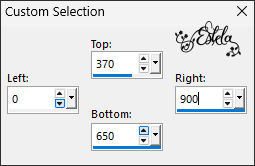
19- Ferramenta Selection (S) Rectangle / Custom Selection:Top 370/Left 0/Right 900/Bottom 650
20- Selections / Promote selection to layer
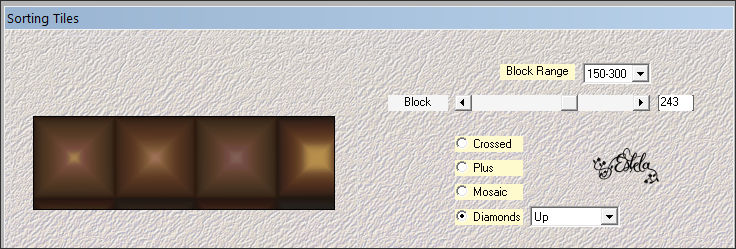
21- Effects / Plugins / Mehdi/Sorting Tiles:Diamonds/Up/150-300/243
22- Selections / Select None
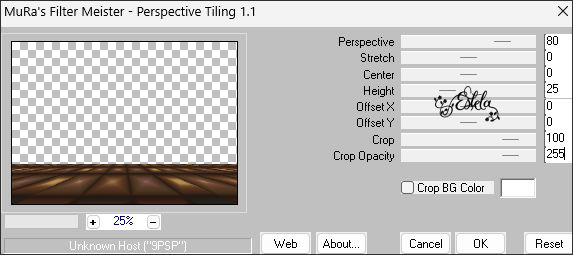
23- Effects / Plugins / Mura's Meister/Perspective Tiling:80/0/0/25/0/0/100/255
24- Effects / Reflection Effects /Rotating Mirror / Default
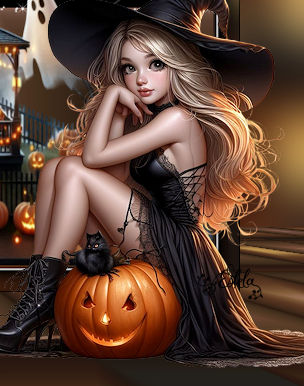
25- Ative o tube «Criss 6471»
Image / Resize / 30% ... Resize All Layers ... Marcado
Ative a Layer do Topo
Copie e cole como nova layer
Coloque à esquerda no canto inferior
26- Effects / 3D Effects / Drop Shadow: 0/0/80/25,00/Cor #000000
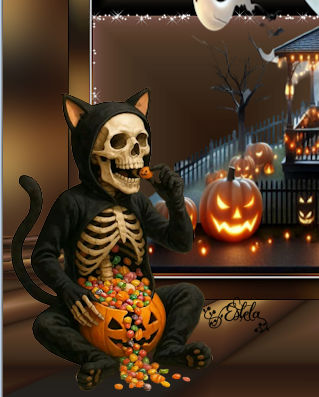
27- Abra oTube «aigenbycaz38»
Image / Resize / 40% ... Resize All Layers ... Marcado
Copie e cole como nova layer
Coloque embaixo à direita
28- Adjust /Sharpness/Sharpens
29- Abra o arquivo « hallow43-wodart-coly »
Image / Resize / 50% ... Resize All Layers ... Marcado
Copie e cole como nova layer
Posicione
30- Effects / 3D Effects / Drop Shadow: 1/1/80/1,00 / Cor #000000
31- Ative a Layer do Fundo
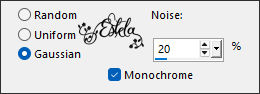
32- Adjust / Add/Remove Noise / Add Noise: Gaussian/Monochrome/Noise 20
33- Layers / Merge / Merge All
34- Image / Add Borders / Symmetric Marcado / 2 pixels cor #000000
35- Image / Add Borders / Symmetric Marcado / 50 pixels cor #761f01
36- Ative a Varinha Mágica e selecione esta borda
37- Layers / New Raster Layer
38- Ative o arquivo «Halloween0004» Copie e cole na seleção
39- Selections / Invert
40- Effects / 3D Effects / Drop Shadow: 0/0/100/40,00/ Cor #000000 (2 vezes)
Selections / Select None
41- Assine seu trabalho
Salve como arquivo JPG.
Extra: Tubes Próprios (personagens)
©Tutorial criado por Nines e Traduzido por Estela Fonseca em 17/10/2026.
Não alterar nem repassar sem autorização.